Valorant Settings Guide 2026: Sensitivity, Crosshair, Graphics & FPS
The complete Valorant settings guide for 2026: recommended sensitivity ranges, crosshair visibility, competitive graphics settings, FPS optimization, and keybinds, with the trade-offs explained.
Valorant's settings menu looks simple, but a handful of choices (sensitivity, crosshair, a few graphics options, and how your keybinds are laid out) affect how consistently you aim, how clearly you see enemies, and how your PC performs under load. This guide covers all four areas at a glance, with the reasoning behind each recommendation, so you can build a setup that fits your own hardware and playstyle instead of copying a number blindly.
Quick Answer: Recommended Settings at a Glance
There is no single "best" Valorant settings file that works for everyone. Sensitivity depends on your mousepad and arm movement, graphics settings depend on your hardware, and crosshair preference depends on your eyes and your monitor. What follows is the range and the defaults that competitive-settings research and publicly shared pro configurations converge on, along with what each choice trades off.
| Setting area | Common recommendation | What it depends on |
|---|---|---|
| Display Mode | Fullscreen | Fullscreen gives the GPU exclusive control of the display, which typically reduces latency compared to Windowed or Borderless |
| Resolution | Native resolution (commonly 1920x1080) | Your monitor's native resolution and refresh rate |
| Material/Texture/Detail Quality | Low to Medium | Lower values reduce visual clutter and can raise FPS on weaker hardware; less impactful on strong hardware since Valorant is CPU-lean |
| Anti-Aliasing | MSAA 2x, or Off for max FPS | Trade-off between smoother edges and a small FPS cost |
| Bloom, Distortion, Vignette, Cast Shadows | Off | These add visual noise around enemy models rather than meaningfully changing performance |
| NVIDIA Reflex | On + Boost (if supported) | Requires an NVIDIA GPU; reduces input latency per NVIDIA's own published data |
| Sensitivity (eDPI) | Most competitive players cluster between 200 and 350 eDPI | Mousepad size, monitor size, grip style, and general aiming style |
| ADS/Scoped Sensitivity Multiplier | 1.0 as a starting point | Whether you play sniper roles frequently and how zoomed aim feels relative to hipfire |
| Crosshair | High-contrast color (cyan, green, yellow), outlined, static (no firing/movement error) | Visibility against your specific monitor and map textures |
The sections below explain the reasoning behind each of these, plus where the trade-offs matter most.
Can My PC Run Valorant? Official Spec Tiers
Before touching in-game settings, it helps to know what tier of hardware you're working with. Riot Games publishes three official performance tiers for Valorant on its support site:
| Tier | Target FPS | CPU | GPU | RAM |
|---|---|---|---|---|
| Minimum | 30 FPS | Intel i3-540 or AMD Athlon 200GE | Intel HD 4000 or AMD Radeon R5 220 | 4GB |
| Recommended | 60 FPS | Intel i3-4150 or AMD Ryzen 3 1200 | NVIDIA GeForce GT 730 or AMD Radeon R7 240 | 4GB |
| High-End | 144 FPS | Intel i5-9400F or AMD Ryzen 5 2600X | NVIDIA GTX 1050 Ti, AMD Radeon R7 370, or Intel Arc A310 | 4GB |
Valorant requires Windows 10 (Build 19041 or newer) or Windows 11 64-bit, and DirectX 11. If you're on Windows 11, Riot also requires TPM 2.0 and UEFI Secure Boot to be enabled, which is part of the Vanguard anti-cheat system's driver-level protections. Riot built Valorant to run on genuinely low-end hardware by competitive-shooter standards, which is why the graphics settings below matter more for consistency and visibility than for making an underpowered PC playable at all.
Graphics and Display Settings
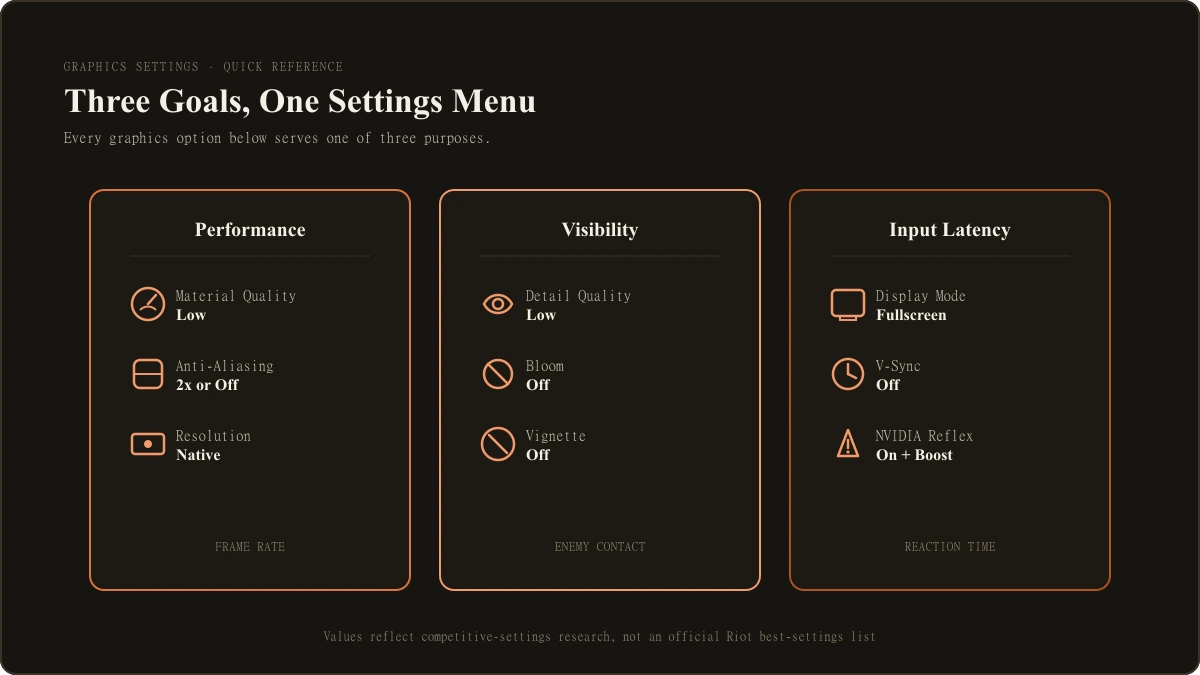
Valorant's graphics options are less about raw performance than most competitive shooters, since the game was designed from the start to run well on modest hardware. Even so, a few settings affect both frame rate and, more importantly, how easy enemies are to spot against the environment.
| Setting | Recommended value | Why |
|---|---|---|
| Display Mode | Fullscreen | Gives the GPU exclusive access to the display, generally the lowest-latency option |
| Resolution | Native | Non-native resolutions introduce scaling artifacts and can look worse without a real FPS gain on modern hardware |
| Material Quality | Low | The setting with the largest effect on FPS on weaker GPUs, since High uses more expensive per-surface shading |
| Texture Quality | Medium | Minimal FPS impact on most systems since Valorant's textures are already fairly light; Medium avoids visible texture pop-in some players report on Low |
| Detail Quality | Low | Reduces background clutter like foliage and environmental detail that can visually hide enemies |
| UI Quality | Medium | Small visual difference, negligible performance impact |
| Vignette | Off | Purely a screen-edge darkening effect with no gameplay benefit, and it slightly reduces peripheral visibility |
| Bloom | Off | Reduces light-glow effects that can wash out enemy silhouettes in bright areas |
| Distortion | Off | Removes a heat-shimmer style visual effect some players find distracting during utility use |
| Cast Shadows | Off or Low | Shadows can help depth perception for some players but add rendering cost for others; a personal preference rather than a clear-cut choice |
| Anti-Aliasing (MSAA) | 2x, or Off | 2x smooths edges at a small FPS cost; competitive players chasing maximum FPS often run it Off |
| Anisotropic Filtering | 4x or 8x | Improves texture clarity at distance with minimal FPS cost, generally safe to leave on |
| V-Sync | Off | V-Sync adds input latency by syncing frames to your monitor's refresh rate; better handled by an uncapped frame rate plus Reflex, where available |
| Multithreaded Rendering | On | Spreads rendering work across CPU cores, generally beneficial on multi-core CPUs |
These values reflect what current competitive-settings guides and publicly tracked pro-player configurations converge on, not an official "best settings" list published by Riot. If you're optimizing for visual quality rather than competitive edge, several of these (Bloom, Cast Shadows, Distortion) are reasonable to leave on since their performance cost is small and their main downside is reduced enemy visibility, not lower FPS.
Sensitivity and Mouse Settings
Sensitivity is the most personal setting in this guide, and no single number is correct for every player. What's useful is understanding the unit players actually compare: eDPI, which is your in-game sensitivity value multiplied by your mouse DPI.
eDPI = in-game sensitivity x mouse DPI
Two players can use completely different in-game sensitivity numbers and still aim identically if their eDPI matches, because eDPI represents how far the cursor actually travels on screen per inch of physical mouse movement.
According to ProSettings.net's tracking of nearly 700 professional Valorant players (as of September 2026), average pro eDPI sits around 267, with a median closer to 240, and roughly 80 to 85 percent of tracked pros fall between 200 and 350 eDPI. That range is not a rule, it's a reflection of what a large sample of high-level players happen to use, largely because lower eDPI favors precise, controlled aim with more physical arm movement, which suits Valorant's headshot-focused gunplay. Plenty of strong players sit outside that range entirely.
If you're picking a starting point rather than copying a specific number:
- Start somewhere in the 200 to 400 eDPI range if you have no strong existing preference from another game.
- Prioritize a mousepad large enough that your chosen eDPI doesn't force you to lift and reposition your mouse mid-turn.
- Adjust from there based on whether you're consistently over-flicking (lower it) or under-turning on wide swings (raise it slightly).
ADS and Scoped Sensitivity Multipliers
Valorant separates your hipfire sensitivity from two other multipliers. The ADS Sensitivity Multiplier applies when aiming down sights on rifles and SMGs. The Scoped Sensitivity Multiplier applies only to the three sniper rifles: Operator, Outlaw, and Marshal. Both default to 1.0, meaning zoomed sensitivity matches hipfire sensitivity exactly, even though your field of view narrows when you zoom in.
Most players leave both at 1.0 while they settle on a base sensitivity. If you play sniper roles often and consistently overshoot targets while scoped, lowering the Scoped multiplier toward 0.85 to 0.90 is a common adjustment. If scoped aim feels sluggish compared to your hipfire speed, raising it toward 1.1 to 1.15 is the usual fix in the other direction.
For the full conversion math, cm/360 figures, and DPI hardware guidance, see our full sensitivity and DPI guide.
Crosshair Settings
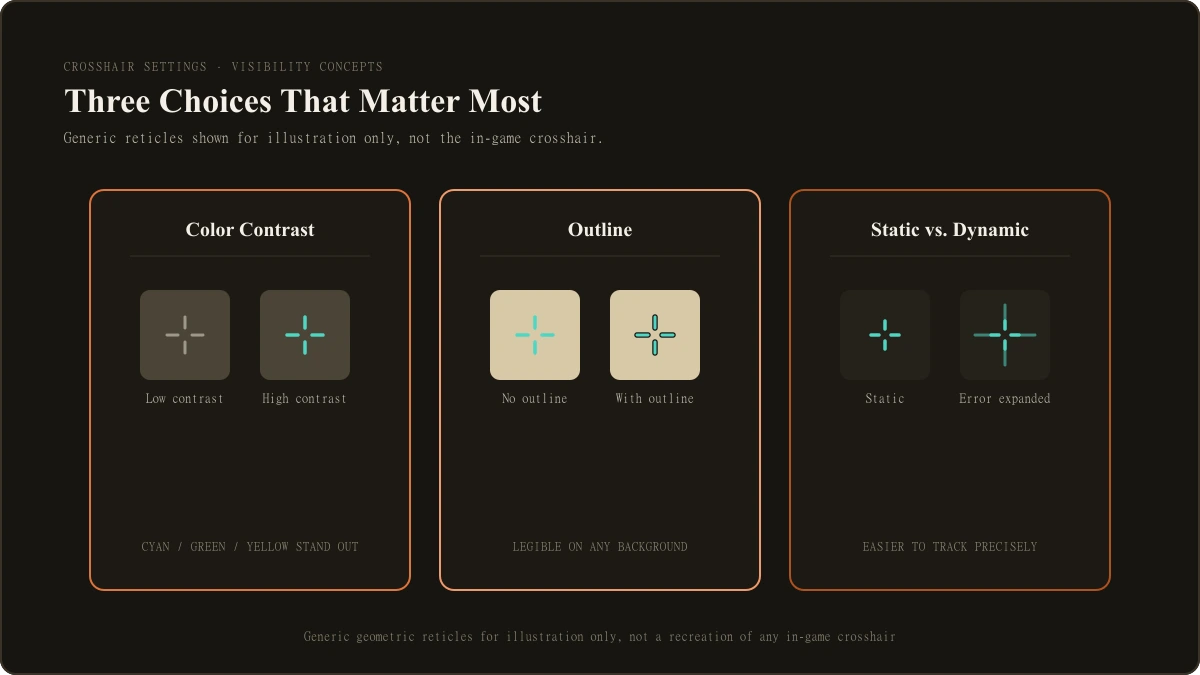
Valorant's default crosshair is a thick green cross with Movement Error and Firing Error both enabled, meaning it visibly expands while you strafe or fire. That behavior functions as a built-in training aid, showing new players when their gun is inaccurate, but past the early learning stage it can become one more moving element to track during a gunfight.
Three adjustments come up consistently across competitive-settings guides:
- Color: high-contrast colors like cyan, green, or yellow stand out against Valorant's generally warm-toned maps more reliably than white or red, which can blend into certain surfaces.
- Outline: adding a dark outline around crosshair lines is widely considered the single biggest visibility upgrade, since it keeps the crosshair legible against both bright and dark backgrounds.
- Static behavior: disabling Movement Error and Firing Error keeps the crosshair a fixed size and shape at all times, which many players find easier to track precisely, though this is a preference rather than a universal rule, since some players like the visual feedback the errors provide.
Crosshair size and thickness are more subjective. A smaller crosshair covers less of a distant target, which matters for precision, while a slightly larger one can be easier to track quickly during close-range fights. There's no single correct size, only trade-offs between long-range precision and close-range trackability.
See our dedicated crosshair guide for specific crosshair codes and full style breakdowns.
Keybinds
Valorant's default keybinds are functional and nothing about them is broken, but several changes come up often enough in competitive-settings coverage to be worth knowing about even if you don't adopt all of them.
| Bind | Default | Common adjustment | Why |
|---|---|---|---|
| Walk | Left Shift | Usually left as-is | Comfortable pinky reach while keeping full WASD control |
| Crouch | Left Ctrl | Some players move it to a more reachable key | Frequent use during peeks; comfort varies by hand size and keyboard layout |
| Jump | Space | Some players bind Mouse Wheel Down | Reduces finger movement between jump-related actions and aiming |
| Ability 1 / Ability 2 | Q / E | Some players use Mouse Buttons 4/5 if available | Keeps fingers closer to movement keys during ability use |
| Ability 3 / Ultimate | C / X | Varies widely by player | No dominant standard; several pro configurations differ from each other here |
| Default Movement Mode | Run | Leave as Run | Switching to Walk as default removes full-speed strafing by mistake |
The larger point is that there's no single "pro" keybind layout. Publicly shared pro configurations differ from each other, sometimes significantly, which is a good sign that keybind comfort is genuinely personal rather than something with one correct answer. Our full keybinds guide covers the complete default list and the most common rebinds in more detail.
FPS and Performance Settings
A few settings sit outside the graphics menu but matter directly for frame rate and input responsiveness.
NVIDIA Reflex, available if you have a supported NVIDIA GPU, reduces the time between a mouse input and the resulting frame appearing on screen. According to NVIDIA's own published data, Reflex can meaningfully reduce system latency, and the Boost option keeps the GPU running at a higher clock state during gameplay to further reduce latency, at the cost of extra power draw and heat. If your GPU supports it, running Reflex On, with Boost enabled if your cooling and power supply can handle it, is a low-downside choice.
V-Sync should generally stay off in Valorant. It caps your frame rate to your monitor's refresh rate by syncing frame delivery, which adds input latency, the opposite of what a competitive setting wants. An uncapped frame rate (or a frame rate cap set through Reflex or your GPU driver rather than V-Sync) avoids that trade-off.
Multithreaded Rendering should stay on for most systems, since it distributes rendering work across CPU cores rather than relying on a single core, which benefits the multi-core CPUs common in gaming PCs today.
If you're dropping frames unexpectedly rather than running a low baseline FPS, that's often a background-process or driver issue rather than something fixable purely through in-game settings. Our dedicated FPS and performance guide covers troubleshooting steps for stutters and frame drops specifically, beyond the baseline settings covered here.
A Note on Field of View
Unlike many shooters, Valorant does not offer an adjustable field of view slider. FOV is fixed at 103 degrees on a 16:9 display, by design, so that enemy model positioning, crosshair placement, and recoil patterns look and behave identically for every player regardless of monitor setup. If you've used an FOV slider in other games, know that Valorant simply doesn't have one to look for.
Competitive Performance vs. Visual Quality: Know Which You're Optimizing For
Most of the recommendations above assume you're optimizing for competitive performance and visibility, which is the more common goal for players searching for Valorant settings. If you care more about how the game looks (richer shadows, bloom, and visual effects intact) that's a legitimate choice too, and Valorant's low baseline hardware requirements mean most systems can run higher visual settings without a painful FPS cost. The trade-off is specifically visibility, not smoothness: effects like Bloom and Cast Shadows can make enemies marginally harder to spot at a glance, which matters more in a game built around fast, precise headshot duels than it would in a slower-paced shooter.
What to Read Next
This Pillar is meant as your overview of Valorant's settings menu, not the final word on any single area. From here:
- For the complete settings walkthrough with every option explained, read our full best settings breakdown.
- For sensitivity conversion math and DPI hardware advice, read our full sensitivity and DPI guide.
- For crosshair codes and visibility breakdowns by playstyle, read our dedicated crosshair guide.
- For every graphics option explained individually, read our complete graphics settings guide.
- For the full default keybind list and common rebinds, read our full keybinds guide.
- If you're chasing FPS or fixing stutters specifically, read our dedicated FPS and performance guide.
- Curious what specific named pro players actually run right now, read our pro settings roundup.

Jordan Blake is the Game Settings Editor at LootVora, covering in-game settings, sensitivity, graphics, controls, keybinds, and performance.