Best Valorant FPS Settings 2026: Boost Performance & Reduce Input Lag
A deep dive into Valorant FPS and performance settings: NVIDIA Reflex, V-Sync, frame rate capping, driver-level options, and how to diagnose stutters and frame drops.
If you already have solid graphics and sensitivity settings but still see frame rate dips, stutter, or input that feels delayed even when the FPS counter looks fine, the fix usually isn't in the graphics menu. It's in NVIDIA Reflex or AMD Anti-Lag, V-Sync, your frame rate cap, and a handful of Windows-level settings that affect how consistently your system feeds frames to the screen. This guide covers that layer specifically: the settings that target frame rate and input lag directly, plus how to tell a genuine hardware ceiling apart from a fixable stutter.
For the individual graphics option definitions (what Material Quality or Detail Quality actually changes), see our complete graphics settings guide. This article assumes you've already been through the basics and want the deeper performance-specific walkthrough.
Quick Answer: FPS and Latency Settings at a Glance
| Setting | Recommended value | Why it matters here |
|---|---|---|
| NVIDIA Reflex (NVIDIA GPUs) | On, Boost optional | Shortens the render queue between your input and the frame reaching the screen |
| AMD Radeon Anti-Lag (AMD GPUs) | On, via the AMD Software driver panel | Same underlying latency goal on Radeon hardware, works without needing Valorant-specific game support |
| V-Sync (in-game and driver-level) | Off | Prevents the frame buffering that adds input lag to sync with your monitor |
| Frame rate limit | A few FPS below your monitor's max refresh rate, or left uncapped if Reflex is managing pacing | Avoids GPU-bound frame queuing and tearing without V-Sync's latency cost |
| Windows power plan | Best Performance or High Performance | Keeps CPU clocks from downshifting between frames, which shows up as micro-stutter |
| Windows Game Mode | On | Prioritizes CPU/GPU resources for the foreground game and defers driver-install interruptions |
| Overlays (Discord, GeForce Experience/NVIDIA app, Steam) | Disabled for competitive sessions | Each overlay hooks into the rendering pipeline; running several stacked adds avoidable overhead |
| Background applications | Closed before ranked or competitive matches | Frees CPU, RAM, and disk contention that causes inconsistent frame times, not a lower FPS ceiling |
The sections below explain why each of these matters and where the real trade-offs are.
NVIDIA Reflex and AMD Anti-Lag: Reducing Input Lag, Not Just Raising FPS
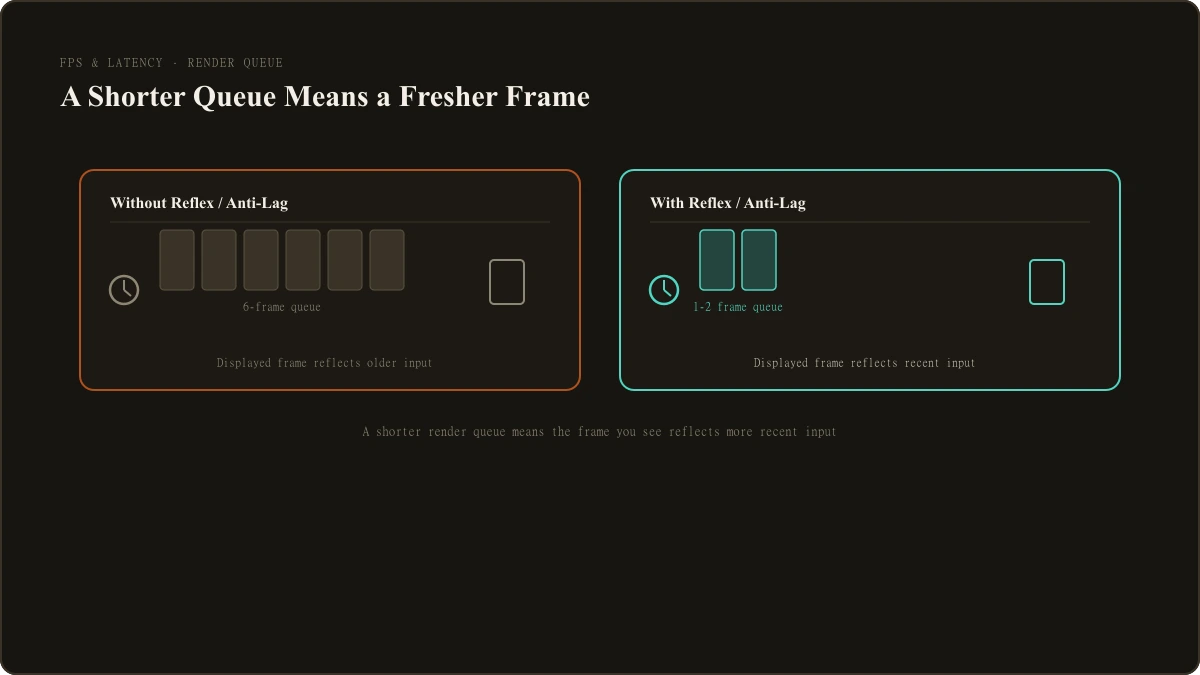
It's worth separating two different problems that get lumped together as "FPS settings": a low frame rate ceiling, and input that feels delayed even at a healthy frame rate. Reflex and Anti-Lag target the second problem specifically.
Normally, your GPU can queue up several frames in advance while it works through a backlog, which keeps frame delivery smooth but means each frame on screen was built from slightly stale input. NVIDIA Reflex works by synchronizing the CPU's frame submission more tightly with the GPU's actual rendering pace, shrinking that queue so the frame you see reflects more recent input. According to NVIDIA's own published materials, this reduces overall system latency, the delay between a mouse or keyboard input and the resulting frame appearing on screen, independent of whatever your frame rate counter reads.
Reflex's Boost option goes a step further by keeping the GPU running at a higher clock state during moments when your CPU is the bottleneck (common in a lightweight, CPU-lean game like Valorant), rather than letting the GPU downclock to save power while it waits. That shaves a bit more latency in CPU-bound moments, at the cost of higher GPU power draw and heat. If your system's cooling handles it without extra fan noise or thermal throttling, enabling Boost is a reasonable default. If you notice your GPU running hotter or louder for a latency gain you can't actually feel, leaving Reflex on without Boost is a fine, lower-downside choice.
If you're on an AMD GPU, the comparable driver-level feature is Radeon Anti-Lag, enabled through the AMD Software Adrenalin panel rather than Valorant's own settings menu. Per AMD's own materials, standard Anti-Lag reduces input-to-response latency by controlling how far ahead the CPU is allowed to prepare frames for the GPU, working broadly across supported games without needing anything from the game's own developers. AMD's newer Anti-Lag 2 goes further but requires the game itself to integrate it, and Valorant is not currently on AMD's published list of supported titles for Anti-Lag 2 as of this writing, so the standard Anti-Lag toggle is the relevant one here, not Anti-Lag 2 specifically.
V-Sync: Why It Hurts Competitive Latency
V-Sync synchronizes frame delivery to your monitor's refresh rate to prevent screen tearing, and it does that job well. The trade-off is input lag: because your GPU can't display a finished frame until the monitor is ready for the next refresh, frames pile up in a buffer waiting their turn, and each one carries input that's now measurably older than when it was captured. Blur Busters, a specialized resource focused specifically on display motion and input latency, documents this frame-buffering behavior in detail and notes that the added delay scales with your frame rate relative to your refresh rate, worse at lower frame rates, smaller but still present at higher ones.
For a competitive shooter where the gap between reacting and firing matters, that trade-off usually isn't worth it. Leaving V-Sync off, both in Valorant's own graphics menu and in your GPU driver's global settings (a driver-level override can still force V-Sync on even if the in-game option is off), avoids the buffering problem entirely. The remaining question, screen tearing without V-Sync, is better solved with a frame rate cap than with V-Sync itself.
Frame Rate Capping Strategy and Monitor Refresh Rate Matching
An uncapped frame rate that runs well above your monitor's refresh rate doesn't show you any more information, since your monitor still only updates as often as its refresh rate allows. What it does do is let your GPU render frames faster than the display can show them, which is exactly the queuing scenario that causes tearing (and, without Reflex managing it, can reintroduce some of the same buffering-related latency V-Sync causes, just without V-Sync's smoothing).
The practical fix is a frame rate cap set a few FPS below your monitor's maximum refresh rate, through Valorant's own frame rate limit option or your GPU driver's frame rate target. A 240Hz monitor, for example, is commonly capped around 230 to 238 FPS rather than left fully uncapped. This keeps the GPU from racing ahead of what the display can show, which per Blur Busters' testing reduces queuing-related input lag by roughly one to two refresh cycles compared to running fully uncapped without V-Sync.
If you have NVIDIA Reflex enabled, this matters less: Reflex's own frame pacing already manages the queue directly, so many players leave the frame rate uncapped (or capped only by their hardware's actual ceiling) and let Reflex handle the rest. Without Reflex or Anti-Lag available, a manual cap near your refresh rate is the more reliable way to get the same benefit.
GPU Driver-Level Settings That Affect Competitive FPS Games
A few settings live outside Valorant entirely, in your GPU's driver control panel, and affect frame pacing and latency the same way regardless of which game you're playing.
On NVIDIA hardware, the NVIDIA Control Panel (or the newer NVIDIA app) includes a Low Latency Mode setting that mirrors what Reflex does at the driver level for games that don't implement Reflex directly; since Valorant does support Reflex natively, the in-game toggle takes priority, but it's worth confirming the driver-level setting isn't set to something that conflicts with it. The Power Management Mode option, set to "Prefer Maximum Performance" rather than the default "Optimal Power" (sometimes labeled "Adaptive"), stops the GPU from downclocking between frames in a lightweight game like Valorant, which otherwise shows up as small, inconsistent frame-time spikes rather than a lower FPS ceiling.
On AMD hardware, the AMD Software: Adrenalin Edition panel is where Radeon Anti-Lag lives, alongside Radeon Chill, a feature that dynamically lowers frame rate during less demanding moments to save power. Chill is generally worth turning off for competitive play, since a fluctuating frame rate works against the consistency this whole category of settings is trying to achieve. AMD's Enhanced Sync is a tearing-reduction option similar in spirit to V-Sync but designed to add less latency; it's a reasonable alternative if you specifically want tearing eliminated and don't want to rely purely on a frame rate cap, though a properly tuned cap remains the lower-latency choice for most competitive setups.
Diagnosing Stutters and Frame Drops
Everything above addresses baseline latency and frame pacing. A separate problem is unexpected stutters or frame drops that show up even when your baseline FPS is otherwise fine, and that's usually a background-load issue rather than something fixable purely through Valorant's own settings.
Riot's own official troubleshooting guidance for frame rate issues points to the same starting checklist regardless of which of its games you're playing: confirm your system meets the recommended specs, keep your graphics drivers and Windows updates current, and clear up background processes competing with the game for CPU and GPU time. Riot specifically frames this last point as "clearing up background processes can ensure other programs aren't fighting for the spotlight against your game," which is a good description of what a stutter usually is: not a lack of raw power, but resource contention at the exact moment a demanding frame needs to render.
Overlay software is a common, often overlooked contributor to that contention. Discord's in-game overlay, NVIDIA's GeForce Experience or NVIDIA app overlay, the Steam overlay, and any recording or streaming overlay software all work by hooking into the game's rendering pipeline (via DirectX or Vulkan) to draw their own UI on top of the game. Each one individually is usually a minor cost, but running several stacked at once, Discord plus Steam plus a capture tool, for example, adds up in ways that are hard to isolate without disabling them one at a time. For a competitive session, disabling any overlay you're not actively using (per-game overlay settings exist in most of this software, so you don't have to disable it everywhere) is a low-effort way to rule this out as a stutter source.
Windows Game Mode, found in Windows Settings under Gaming, is worth leaving on for most players: it prioritizes CPU and GPU resources for whichever game is in focus and defers things like driver installation prompts and update notifications until you're done playing. It isn't a performance multiplier in the sense of unlocking extra hardware capability, but it does reduce the odds of Windows interrupting a match at the wrong moment.
Power plan is the other commonly overlooked setting. Windows' default Balanced power plan is designed to trade some performance for battery life and reduced power draw, which on a desktop or a plugged-in laptop is a trade-off you don't need to make. Per Microsoft's own documentation, the Best Performance (or, on older Windows versions, High Performance) power mode prioritizes computational power over energy efficiency, which in practice means the CPU is less likely to downclock between frames. That downclocking, when it happens mid-match, is a common and hard-to-diagnose source of micro-stutter that has nothing to do with your graphics settings at all. Switching to Best Performance or High Performance in Windows' power settings (accessible from the battery icon or Settings > System > Power) is a quick, no-downside change for a desktop or a laptop plugged into power.
If none of this resolves a low baseline frame rate specifically, rather than intermittent stutters, that's more likely a genuine hardware ceiling. In that case, the fix is in Valorant's own graphics settings rather than anything covered here.
What Chasing FPS Trades Off Against Visual Quality
It's worth restating a point our Pillar guide makes at the overview level, because it applies directly here too: nothing in this article makes Valorant look better, and several of the graphics-menu changes that pair with a performance-focused setup (disabling Bloom, Cast Shadows, and Distortion, lowering Material and Detail Quality) trade visual richness for consistency and enemy visibility, not for FPS specifically, since Valorant already runs well on modest hardware by competitive-shooter standards. If your goal is smoother, more consistent frame delivery and lower input lag rather than a prettier game, that's exactly what Reflex/Anti-Lag, V-Sync off, a proper frame cap, and the driver and Windows settings above are for. If you'd rather keep the richer visual options and only care about a stable, comfortable frame rate, most of that is achievable without touching them, since Valorant's baseline hardware requirements are low enough that the graphics settings matter more for competitive visibility than for making the game playable at all. See our complete graphics settings guide for the full option-by-option breakdown either way.
Putting It Together
A reasonable order to work through this: confirm your hardware sits at or above Riot's recommended spec tier, update your GPU drivers and Windows, enable Reflex or Anti-Lag depending on your GPU, turn V-Sync off everywhere (in-game and driver-level), set a frame rate cap a few FPS under your refresh rate (or leave it uncapped if Reflex is doing the work), switch to a Best Performance or High Performance Windows power plan, and close overlays and background applications you don't need during competitive play. If you're still hitting a hard FPS ceiling after all of that, the remaining lever is Valorant's own graphics settings, not anything covered in this article.
For the complete settings walkthrough covering sensitivity, crosshair, graphics, and keybinds together, see our full best settings breakdown. If you're curious what specific named pro players actually run, including their Reflex and driver choices, see our pro settings roundup.

Jordan Blake is the Game Settings Editor at LootVora, covering in-game settings, sensitivity, graphics, controls, keybinds, and performance.