Best Valorant Graphics Settings 2026: High FPS & Competitive Visibility
Every Valorant graphics setting explained individually: Material Quality, Texture Quality, Anti-Aliasing, Anisotropic Filtering, and more, with recommendations for Minimum, Recommended, and High-End hardware tiers.
Valorant's graphics menu has no presets: every option (Material Quality, Texture Quality, Anti-Aliasing, and a dozen others) gets set individually, under Settings > Video > Graphics Quality in the client. The Pillar's summary table gives you a fast set of values to copy. This guide goes deeper: what each option actually changes under the hood, why it affects FPS or enemy visibility (sometimes both, sometimes neither), and how the right choice shifts depending on whether your PC sits at Riot's Minimum, Recommended, or High-End spec tier.
Quick Answer: Competitive Performance vs. Visual Quality
These two goals often want different values from the same setting. If you're not sure which you're optimizing for, default to the competitive-performance column, since it's the more common reason players search for Valorant graphics settings in the first place.
| Setting | For competitive performance and visibility | For visual quality |
|---|---|---|
| Material Quality | Low | Medium or High |
| Texture Quality | Medium | High |
| Detail Quality | Low | Medium or High |
| UI Quality | Medium | High |
| Anti-Aliasing | Off, or MSAA 2x | MSAA 4x |
| Anisotropic Filtering | 4x or 8x | 16x |
| Improve Clarity | Off (test on your own system) | On |
| Experimental Sharpening | Off (test on your own system) | On |
| Vignette | Off | On, if you like the cinematic look |
| Bloom | Off | On |
| Distortion | Off | On |
| Cast Shadows | Off or Low | High |
| Multithreaded Rendering | On | On |
Multithreaded Rendering is the one row without a trade-off. It distributes rendering work across CPU cores rather than one, which helps almost every modern multi-core system regardless of whether you're chasing FPS or visuals, so there's little reason to ever turn it off.
How Your Hardware Tier Changes These Recommendations
Riot Games publishes three official performance tiers for Valorant: Minimum (30 FPS target), Recommended (60 FPS target), and High-End (144 FPS target), based on specific CPU and GPU pairings. The competitive-performance column above assumes you're already comfortably above your tier's target frame rate and are optimizing for visibility and consistency, not fighting for playability. If you're at or near Minimum spec, some of these settings do more than the table above implies. See our Valorant settings guide hub for the full official spec table if you haven't confirmed your tier yet.
Display Mode, Resolution, and Aspect Ratio
Display Mode offers Fullscreen, Windowed Fullscreen (Borderless), and Windowed. Fullscreen gives your GPU exclusive access to the display, which is why it's the standard competitive choice; Windowed Fullscreen trades a small amount of that exclusivity for easier alt-tabbing to Discord or a second monitor, a reasonable swap if you frequently tab out between rounds.
Resolution should match your monitor's native resolution in almost every case. Riot's own support documentation lists every supported resolution across 4:3, 5:4, 16:9, 16:10, and 21:9 aspect ratios, several of which (5:4, 16:10, and ultrawide 21:9) are explicitly flagged by Riot as recommended for windowed mode rather than fullscreen to avoid display issues. Riot's support page states directly: "We highly recommend 16:9 for the best in-game experience," which matters beyond just image quality: Valorant's fixed 103-degree field of view is calibrated around 16:9, so non-16:9 aspect ratios can distort how much of the map is visible at the screen edges relative to what other players see.
Running below native resolution can raise FPS on genuinely weak hardware, but it introduces scaling blur that often costs more in target clarity than it gains in frame rate, which is why it's a Minimum-tier consideration specifically, not a general recommendation.
Material Quality
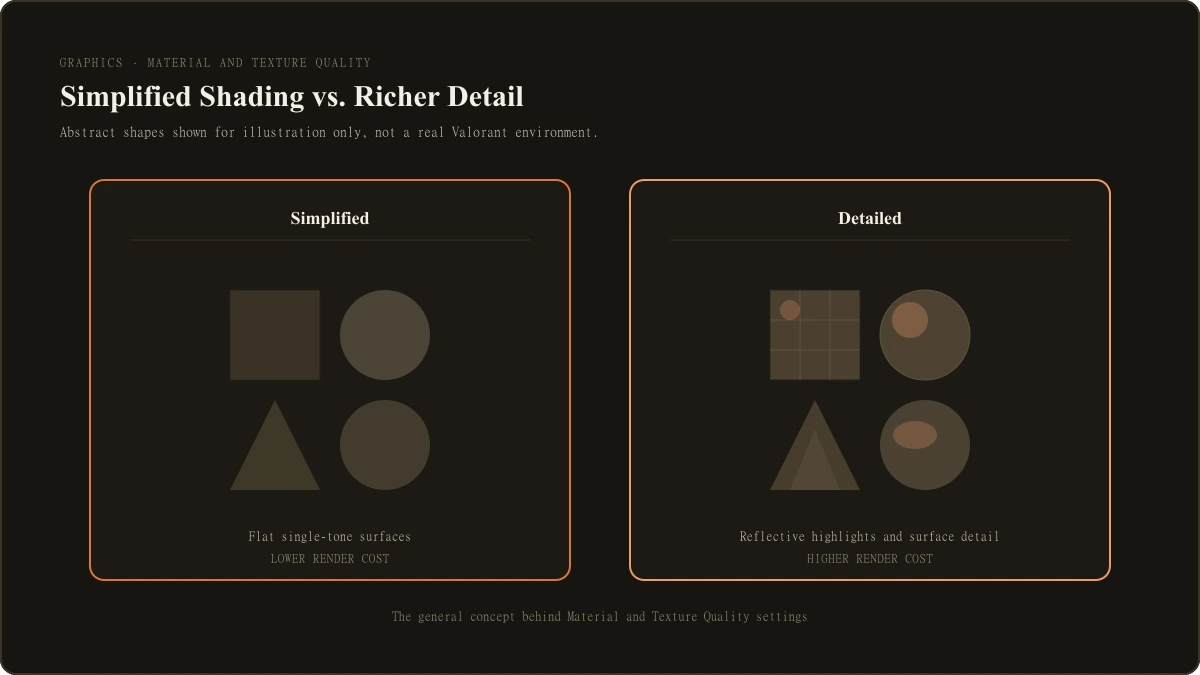
Material Quality is widely considered the single biggest FPS lever in Valorant's graphics menu, and it's also the setting cross-referenced most consistently across competitive-settings guides as the first one to lower. At High, surfaces render with more complex shading: reflective highlights on wet or metallic surfaces, brighter recon-dart lighting, denser-looking smoke effects. At Low, the engine uses flatter, simplified shading across the same surfaces.
The performance difference scales with your GPU: on hardware near the Minimum or Recommended tier, dropping Material Quality to Low is one of the more meaningful single changes available in the entire menu. On High-End hardware already running well above 144 FPS, the FPS difference matters less, but the visibility argument still holds: flatter surfaces at Low make enemy models stand out more cleanly against reflective or glossy backgrounds, which is why most competitive guides recommend Low even on strong systems.
Texture Quality
Texture Quality controls how detailed the "skin" applied to objects and surfaces looks, independent of the shading Material Quality controls. Low Texture Quality can introduce visible pop-in (textures loading in late or looking blurry up close) on some systems, which several competitive-settings sources cite as the reason to run Medium rather than Low even when chasing maximum FPS: the FPS cost of Medium over Low is described consistently as small, while the visual downside of Low's pop-in is a real, if minor, distraction. High Texture Quality adds sharper detail at a slightly higher VRAM cost, which matters more for High-End systems with GPUs that have VRAM to spare.
Detail Quality
Detail Quality governs environmental clutter: foliage density, background debris, small decorative objects. This is one of the clearer visibility-over-performance settings on this list, since a High setting adds more visual information for your eyes and brain to filter through when scanning for an enemy silhouette. Low Detail Quality strips that clutter down, making a peeking enemy stand out against a cleaner background, which is the primary reason competitive-settings guides recommend Low regardless of hardware tier, not just as an FPS optimization.
UI Quality
UI Quality affects the rendering quality of HUD elements: the minimap, weapon and ability overlays, and the buy menu. Cross-referenced guides consistently describe its performance impact as minimal compared to the environment-rendering settings above, since HUD elements are a small, fixed part of the frame regardless of resolution. Medium is a reasonable default for most players; there's little competitive reason to go lower, since a slightly crisper minimap and buy menu don't cost you meaningful FPS to keep.
Anti-Aliasing
Anti-Aliasing smooths jagged edges on angled surfaces and object outlines. Valorant's confirmed option set, cross-checked across multiple current sources, is Off, MSAA 2x, and MSAA 4x (Multisample Anti-Aliasing, which samples pixel edges multiple times to blend them rather than post-processing the whole frame). MSAA 4x looks noticeably smoother than 2x but costs more FPS than the jump from Off to 2x does, so it's the setting where visual-quality players see the clearest diminishing return if they're also chasing frame rate. Competitive players commonly run either Off for maximum FPS or MSAA 2x as a middle ground, since jagged edges rarely affect whether you can identify an enemy model, only how clean the image looks doing it.
Anisotropic Filtering
Anisotropic Filtering sharpens textures viewed at oblique angles, like a floor or wall stretching away from the camera, which would otherwise blur more than textures viewed straight-on. It scales from 2x up to 16x. Unlike most settings on this list, Anisotropic Filtering leans on GPU texture-sampling hardware specifically rather than general rendering load, which is why its FPS cost is consistently described as smaller than settings like Material Quality even at its highest value. Players on Minimum-tier hardware can reasonably run 2x to conserve every available frame; Recommended-tier and above have little reason not to run 4x or 8x, since the visual benefit (sharper distant textures, useful for reading far-off details) comes at minimal cost. High-End systems can push to 16x without a meaningful trade-off.
Improve Clarity and Experimental Sharpening
These two options both apply a sharpening filter to the final rendered image, increasing edge contrast and reducing the soft, slightly blurry look some players associate with anti-aliased or lower-resolution rendering. Community-settings guides disagree on their real-world performance cost: some describe a small but real FPS impact, others describe it as close to negligible on modern hardware, and the discrepancy doesn't resolve cleanly across the sources checked for this article. That's genuinely a "test it yourself" setting rather than one with a confident universal answer: toggle each on and off in a private match or the Practice Range, watch your FPS counter, and judge whether the sharper image is worth whatever cost you personally observe on your own system.
Vignette, Bloom, and Distortion
These three share a common thread: each adds a visual effect around the edges of the frame or around light sources, and each is widely recommended Off for competitive play, not primarily for FPS (their performance cost is small) but because each one adds visual noise in exactly the areas where you're trying to spot an enemy.
- Vignette darkens the screen's edges for a cinematic look, which reduces peripheral clarity exactly where a flanking enemy is most likely to first appear.
- Bloom adds a glow around bright light sources and effects, which can wash out enemy silhouettes standing in front of bright surfaces or ability effects.
- Distortion adds a heat-shimmer-style visual warp around certain effects (like Sage's wall or utility detonations), which several players report as actively distracting mid-fight.
If you're optimizing purely for how the game looks rather than for competitive visibility, all three are reasonable to leave on, since none meaningfully affects your frame rate either way.
Cast Shadows
Cast Shadows controls whether player models and objects render dropped shadows. This is one of the more genuinely split recommendations on this list: some players find shadows helpful for depth perception, spotting a foot or shadow before the rest of a model peeks around a corner, while others find that same shadow just another visual element to parse under time pressure. Its FPS cost is generally described as low to moderate depending on scene complexity, making it more of a preference call than a clear-cut competitive-versus-visual trade-off like Bloom or Vignette.
Multithreaded Rendering
Multithreaded Rendering spreads the CPU-side work of preparing each frame across multiple cores instead of relying on a single core to handle it sequentially. Nearly every modern gaming CPU, even Riot's own Minimum-tier reference CPUs, has multiple cores available, which is why this setting is recommended On essentially without exception. The main scenario where it wouldn't help is genuinely old single-core-bound hardware well below Valorant's published minimum spec, which is an edge case outside what this guide's tier structure covers.
V-Sync and NVIDIA Reflex
Two more settings live in this menu but are covered in real depth elsewhere, since they're about input latency and frame delivery rather than what's rendered on screen. Briefly: V-Sync syncs frame delivery to your monitor's refresh rate to prevent tearing, at the cost of added input lag from frame buffering, which is why it's generally recommended Off for competitive play. NVIDIA Reflex, available on supported NVIDIA GPUs, tightens the render queue to reduce the delay between an input and the resulting frame appearing on screen, according to NVIDIA's own published materials. For the full mechanics of both, plus AMD Radeon Anti-Lag, frame rate capping strategy, and diagnosing stutters, see our dedicated FPS and performance guide.
Competitive Performance vs. Visual Quality: Settings by Hardware Tier
Putting the whole menu together, here's a full profile for each of Riot's three official spec tiers, biased toward competitive performance and visibility, which is the more common goal for anyone searching graphics settings specifically.
| Setting | Minimum tier | Recommended tier | High-End tier |
|---|---|---|---|
| Material Quality | Low | Low | Low |
| Texture Quality | Low | Medium | Medium |
| Detail Quality | Low | Low | Low |
| UI Quality | Low | Medium | Medium |
| Anti-Aliasing | Off | Off or MSAA 2x | MSAA 2x |
| Anisotropic Filtering | 2x | 4x | 8x |
| Improve Clarity / Experimental Sharpening | Off | Test both | Test both |
| Vignette / Bloom / Distortion | Off | Off | Off |
| Cast Shadows | Off | Off or Low | Personal preference |
| Multithreaded Rendering | On | On | On |
| Resolution | Native, or one step down if still struggling | Native | Native |
If you'd rather prioritize how the game looks over squeezing out every frame, most of the Recommended and High-End columns above have room to move toward the visual-quality values from the Quick Answer table without meaningfully hurting playability, since Valorant's baseline hardware requirements are low by competitive-shooter standards. Minimum-tier systems have the least room for that trade-off, since several of these settings are doing real work keeping frame rate above the 30 FPS target rather than purely serving visibility.
What to Read Next
This guide covers the graphics menu specifically, option by option. From here:
- For the complete settings walkthrough covering sensitivity, crosshair, graphics, and keybinds together, read our complete best settings breakdown.
- For crosshair color, outline, and visibility choices that pair naturally with these graphics settings, read our dedicated crosshair guide.
- If you've already optimized this menu and still have FPS or input-lag problems, read our dedicated FPS and performance guide.
- For sensitivity and aim-consistency fundamentals, read our full sensitivity and DPI guide.
- Curious what specific named pro players actually run for graphics settings, read our pro settings roundup.

Jordan Blake is the Game Settings Editor at LootVora, covering in-game settings, sensitivity, graphics, controls, keybinds, and performance.